Exporting Single Meshes from CAD
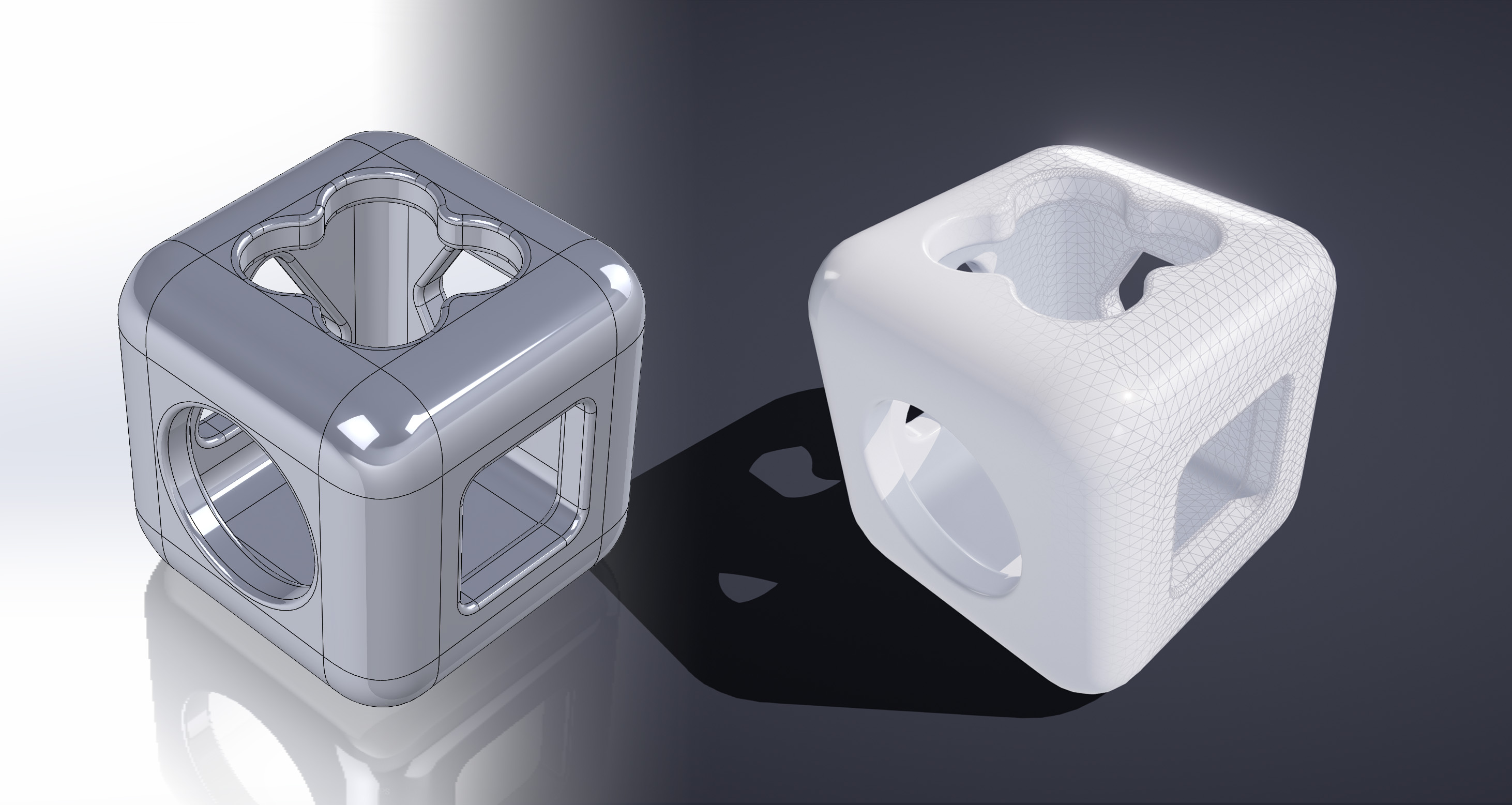
SuperDex CAD Exporter includes mesh export tools accessed separately from the robot configuration and export pipeline. This is an alternative to the CAD-native mesh exports as our meshing tools may provide better tessellation for specific use-cases.
Exporting from SolidWorks
You can export individual meshes from either Parts or Assemblies. Before exporting, select either the bodies or components you wish to export.
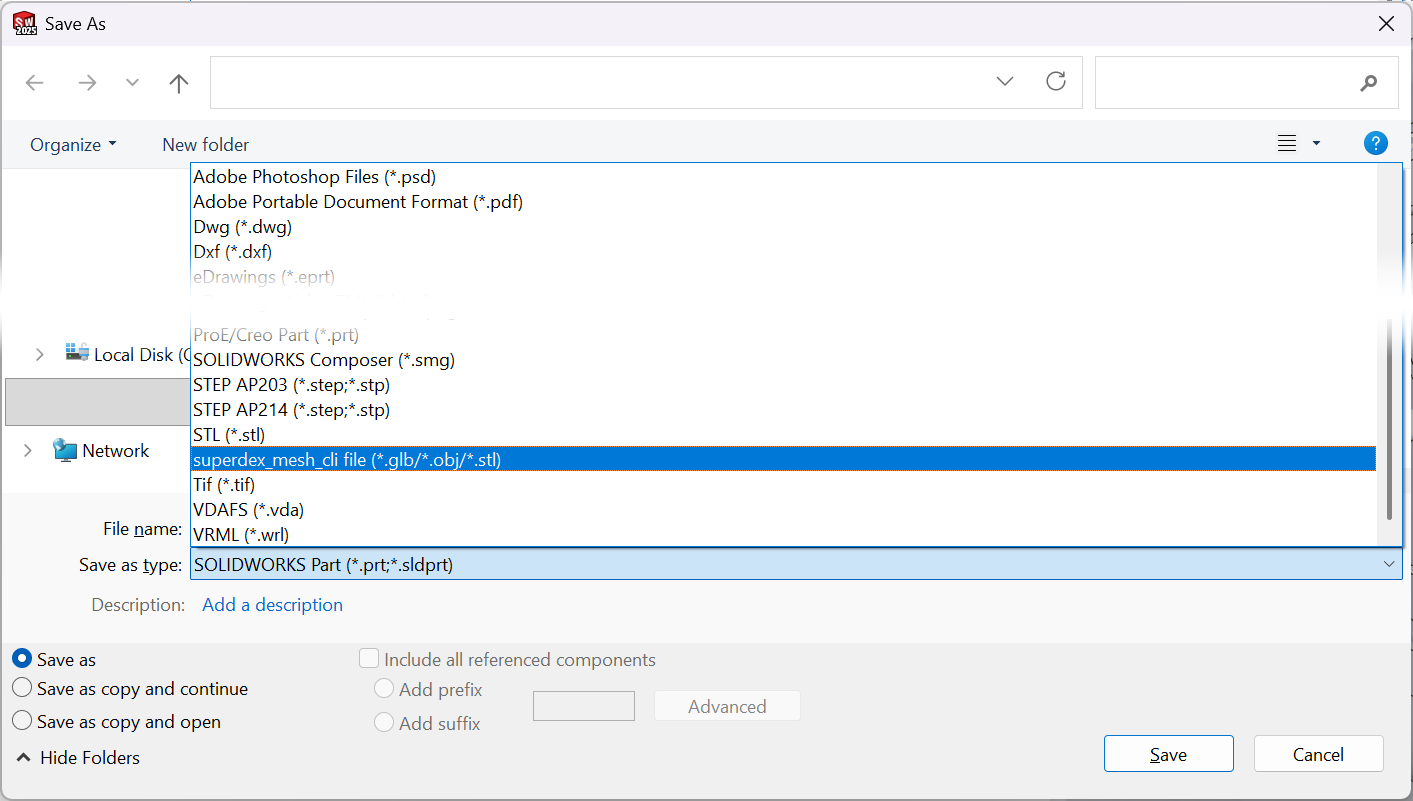
Then using the File → Save As... menu, then selecting the file type as superdex_mesh_cli mesh (.glb, .obj, .stl). Set the filename here.
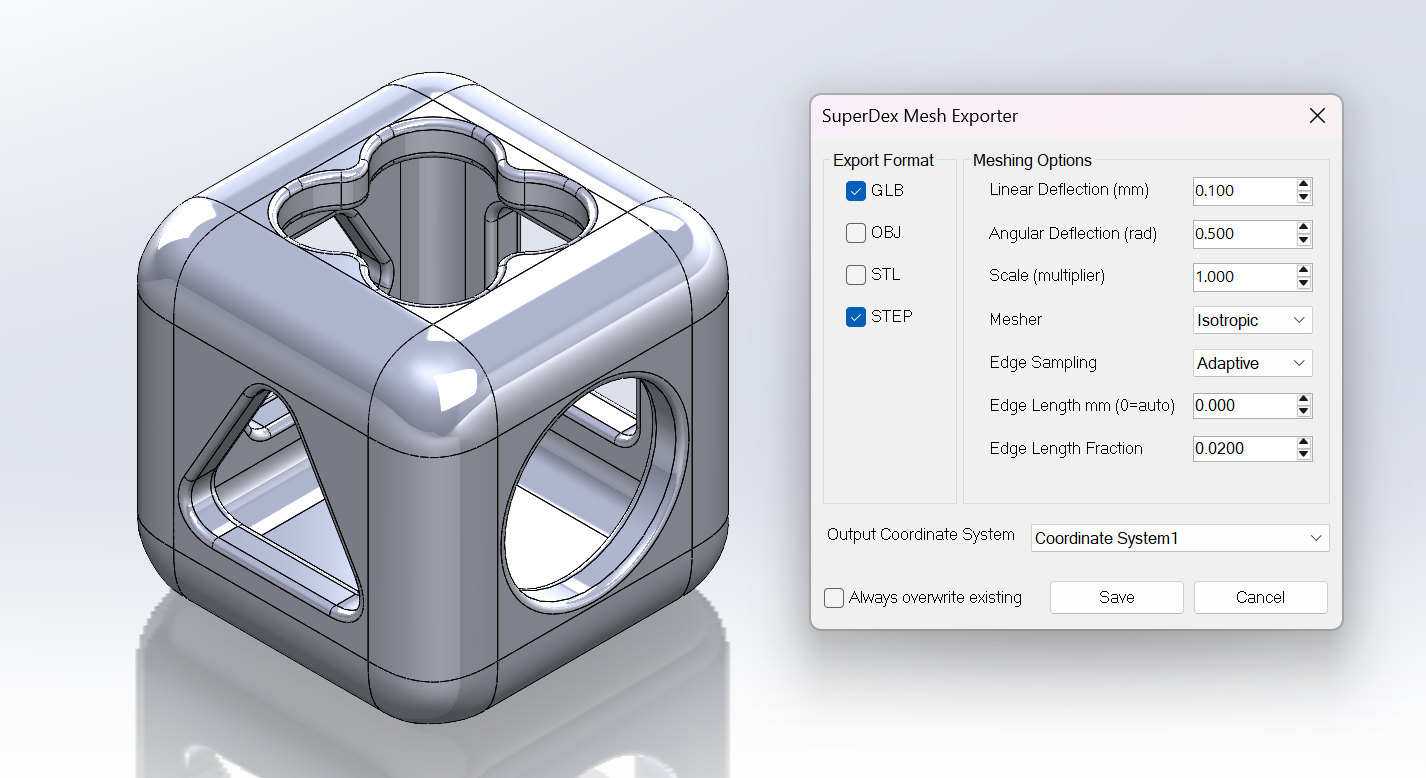
From here, you can configure the meshing options, as well as select an output coordinate system. For creating SuperDex assets, export a GLB for the visual mesh as well as a STEP file for meshing directly from CAD for the collision mesh.
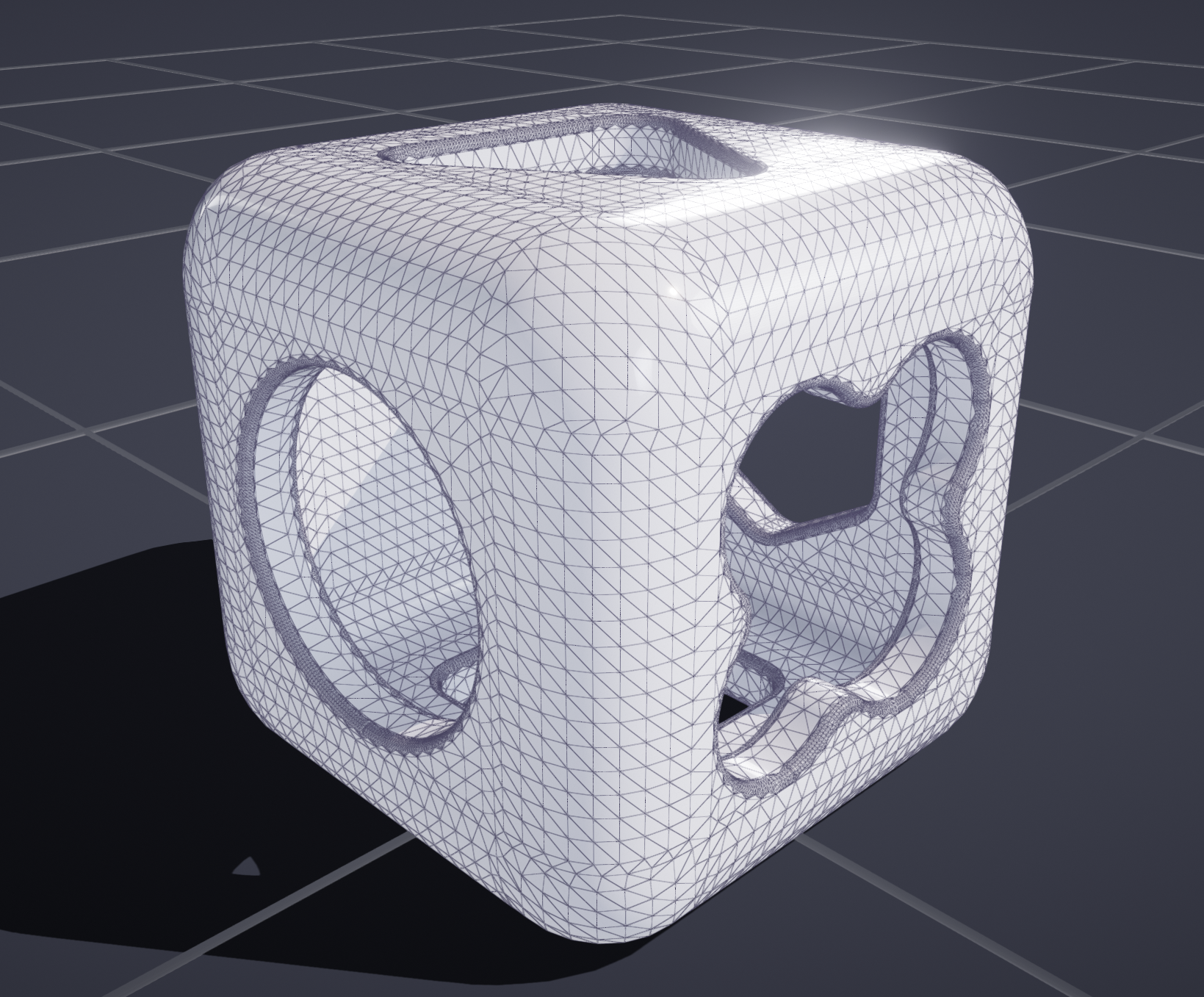
The resulting files can then be loaded in SuperDex Studio.
Exporting from Siemens NX
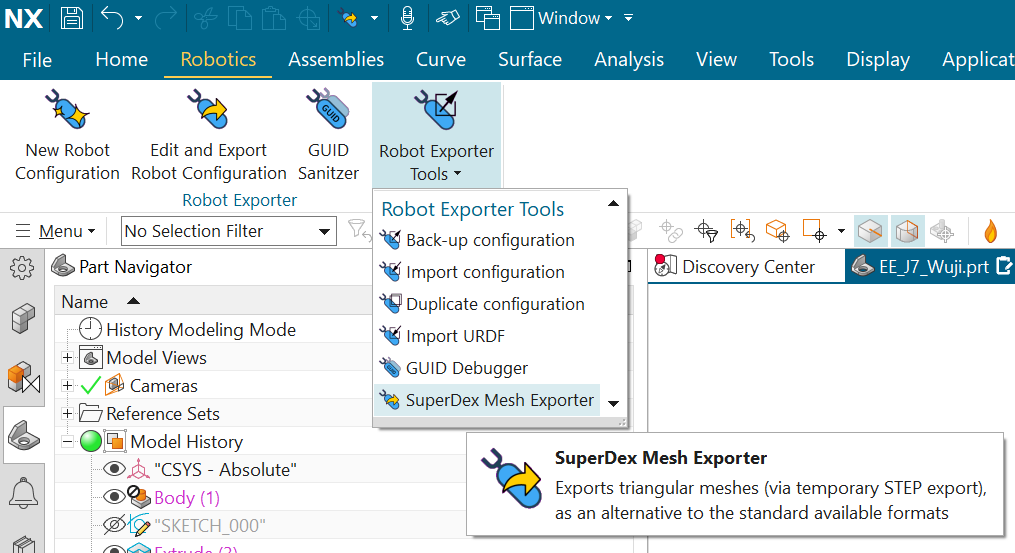
You can export individual meshes from either Parts or Assemblies. Start the mesh exporter using Robot Exporter Tools → SuperDex Mesh Exporter in the Robotics tab.
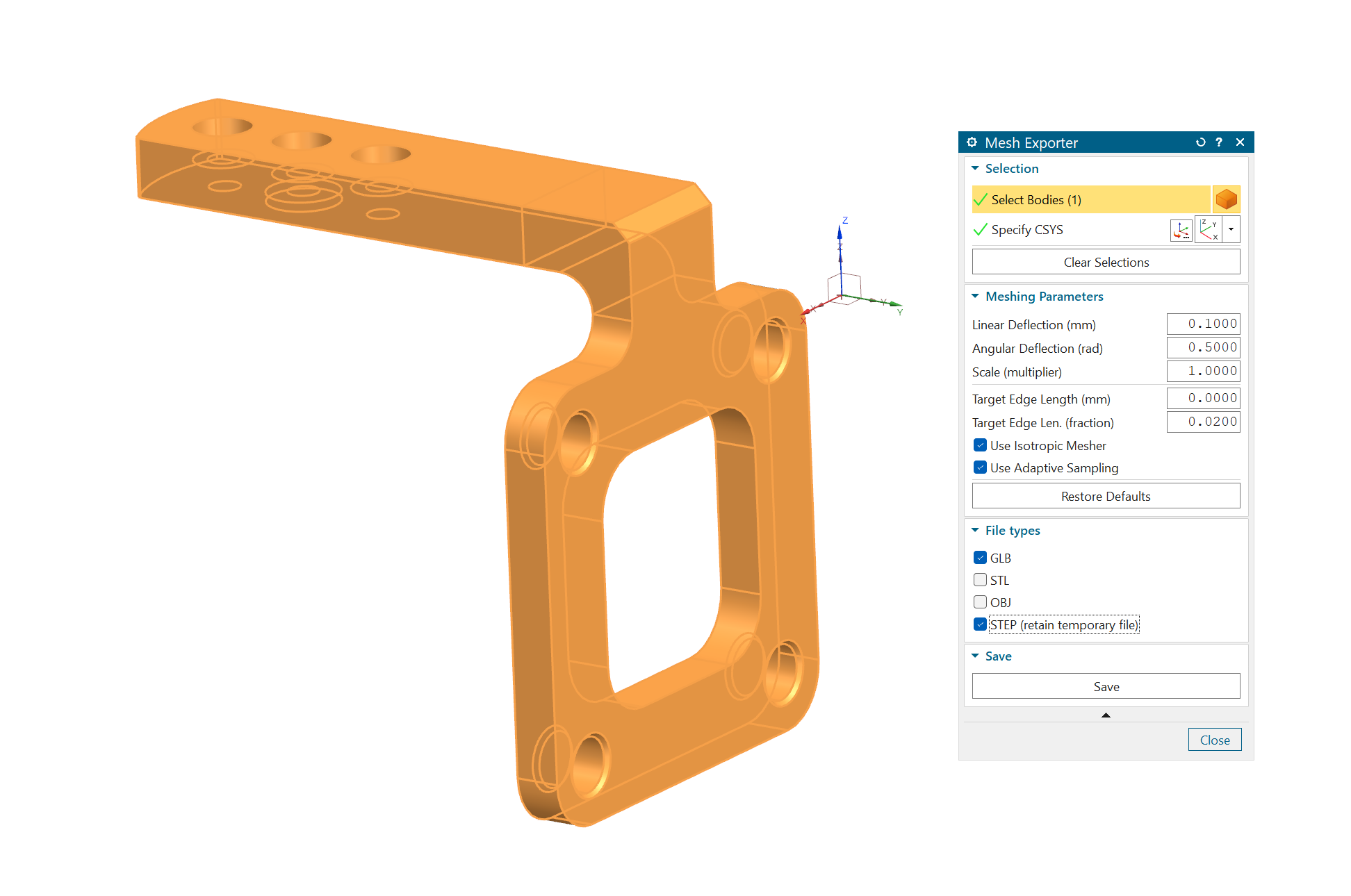
From the dialog, you can select the bodies you want to export, configure the meshing options, as well as select an output coordinate system. For creating SuperDex assets, export a GLB for the visual mesh as well as a STEP file for meshing directly from CAD for the collision mesh.
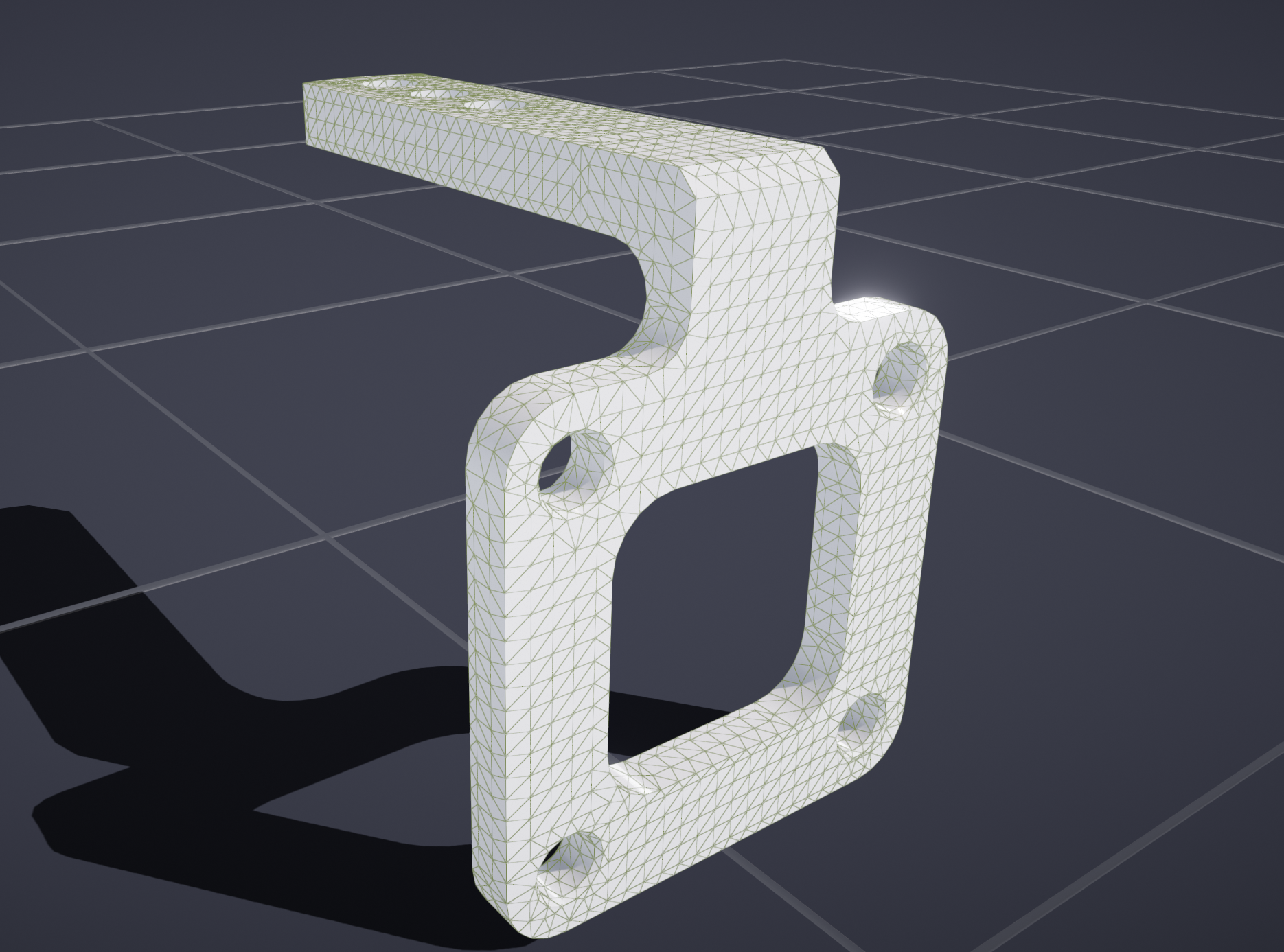
The resulting files can then be loaded in SuperDex Studio.
See Also
- Model Editor Guide — post-export processing in SuperDex Studio