Siemens NX Quirks
How Selections are Retained Across Sessions
Since NX does not have any means of holding persistent references to selections across sessions (the parts/bodies/features we need for the exporter), the exporter utilizes Attributes within features: every time you select something while using the exporter, it adds a GUID Attribute to the selected feature/object. That Attribute is then saved along with the .prt it belongs to. The exporter finds and queries these Attributes to re-select features and objects across sessions and throughout the export process.
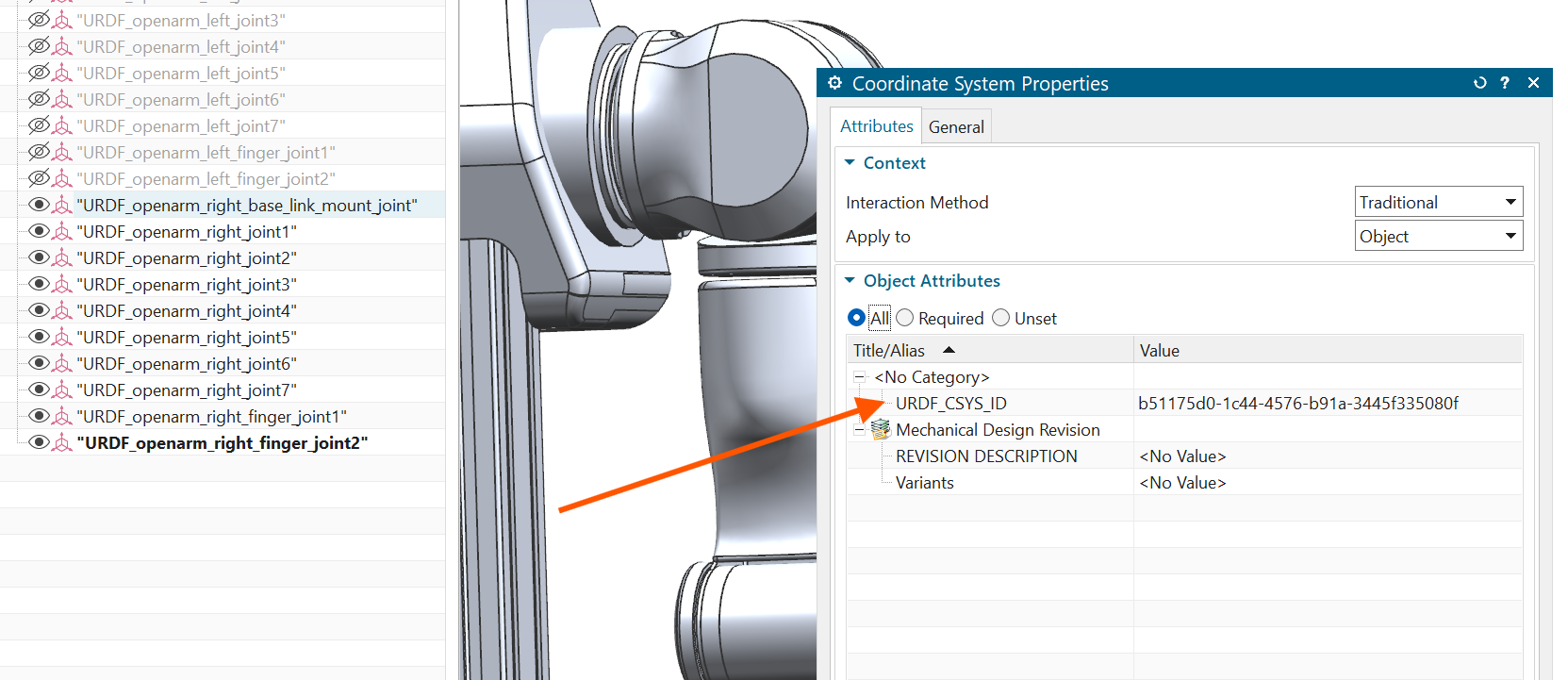
Every time you make a selection in the exporter, a part is modified. Therefore, please be mindful of this when using Teamcenter NX. This is unfortunately necessary to hold references to features across users, NX versions and sessions.
Do note that references to components in assemblies are stored in the the top-level .prt (the .prt your Robot Configuration feature lives in), so selecting components instead of bodies will reduce the amount of parts modified.
Teamcenter NX Guardrails
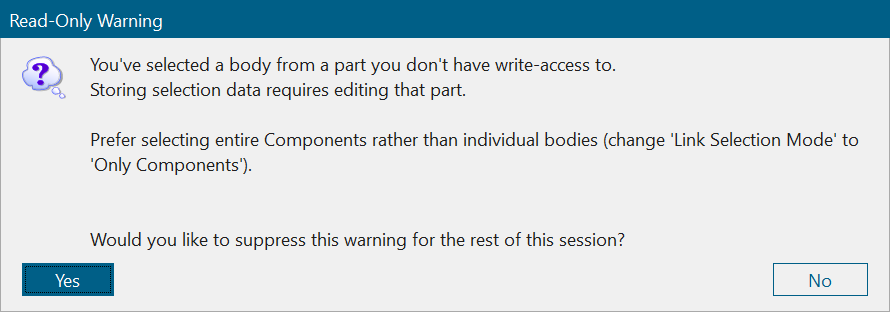
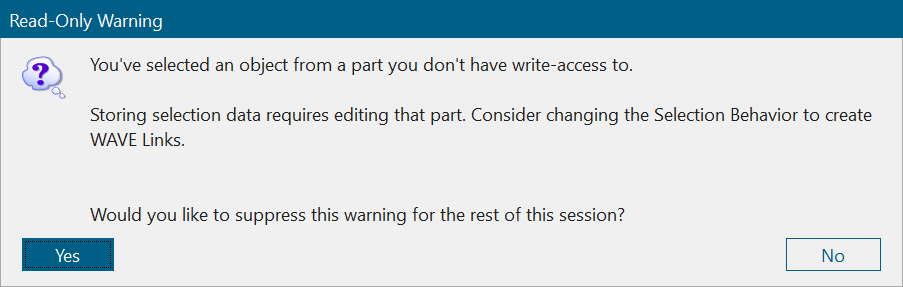
Because selections cause part editing, selections will not save in Teamcenter NX environments with Part ownership rules. The exporter's default settings help prevent this by:
-
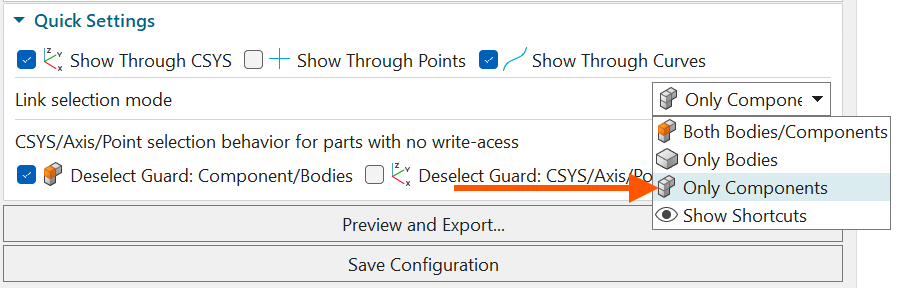
Link body/component selection is set to Component Only. GUID attributes will be written to components in the .prt file being exported. Body selection will require editing the component's .prt file by adding GUID attributes to the body itself.
-
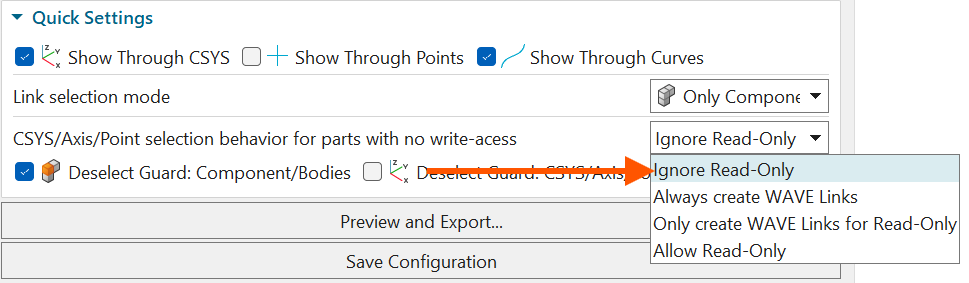
By default CSYS, Axis, and Points check for write-access and then will deselect on your behalf if the part is read-only. You can change this behavior to:
- Ignore Read-Only: (Default) Doesn't let you select Datums/Bodies in parts you don't have write-access to.
- Always create WAVE Links: Creates WAVE links upon selecting Datums (Bodies are NOT supported) on the current working part, no matter if you have write-access or not
- Only create WAVE Links for Read-Only: Creates WAVE links upon selecting Datums on the current working part, only if you don't have write-access on that part.
- Allow Read-Only: Lets you select Datums/Bodies in parts you don't have write-access to. Once you close the parts, the exporter will not be able to find the references when you next open it.
Duplicated GUIDs
Unfortunately, when using features like patterning or mirroring, NX copies the parent Attributes to the children; which means that we have broken the uniqueness of the GUID by having two or more copies in the assembly or part. This means that selections will be nondeterministic, the tool will work, but will most likely select the wrong object.
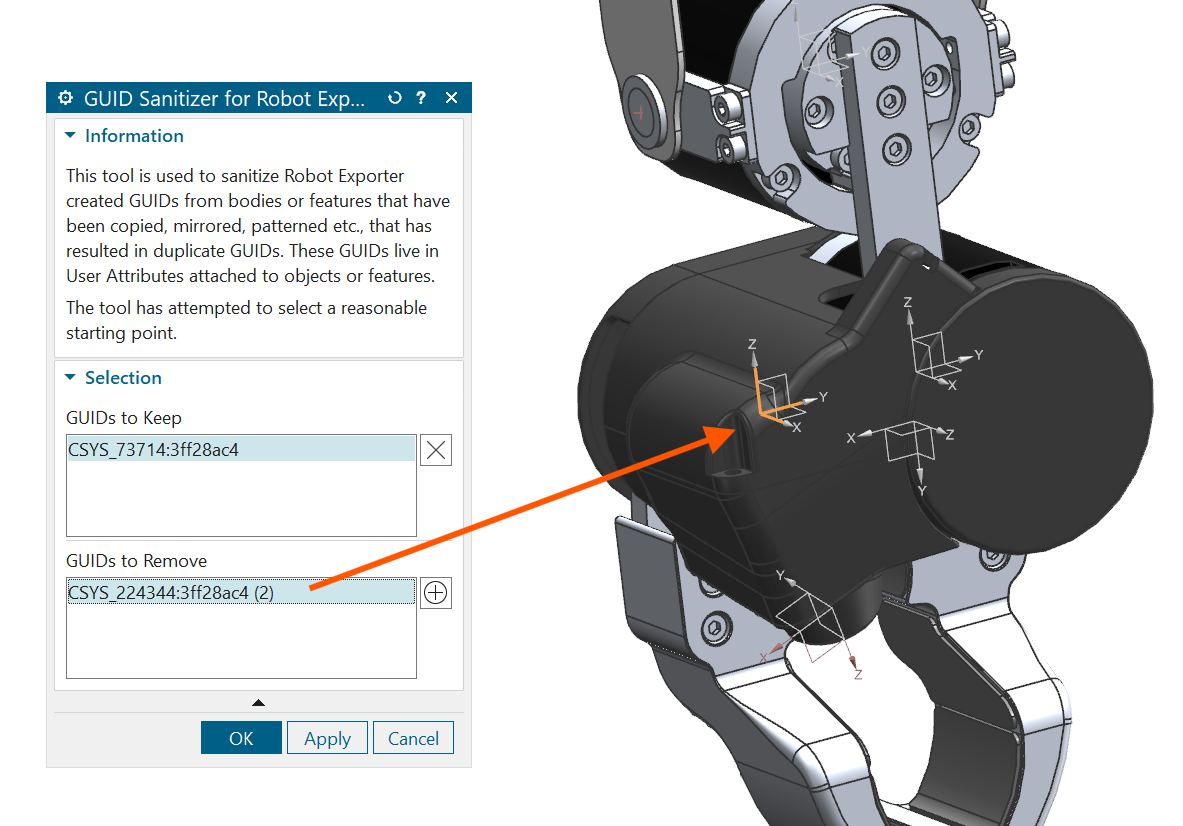
Upon editing a robot or creating a new one, the tool will warn you if there are GUID collisions and offer to open the GUID Sanitizer tool.

The tool will try to select what it thinks are the original parents of the GUIDs. You can use the tool to prune duplicate GUIDs. The tool will highlight the objects the GUID belongs to in the viewport, simply move the GUIDs into or out of the top and bottom list using the ⊕ and x buttons to choose which ones to keep and which ones to remove.
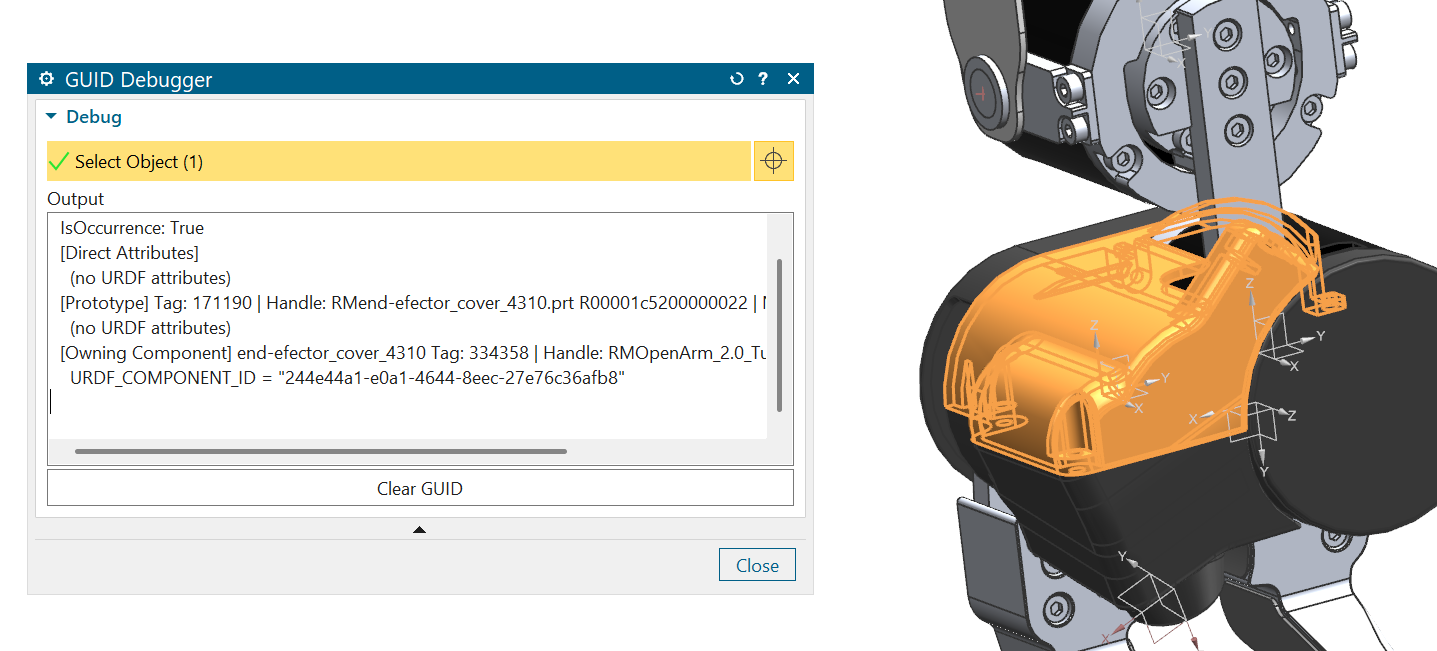
You can also use the Robot Exporter Tools → GUID Debugger tool to view and clear GUID Attributes by clicking on individual features or parts.