Importing
Importing is the most common way to create a bot in Studio. Rather than
authoring a robot from scratch, you bring in an existing robot description and
let Studio convert it into a native .superdex_bot with preprocessed render and
collision assets.
Studio ships with a URDF importer and an MJCF (MuJoCo) importer. Both
open the same wizard. This guide walks through importing a .urdf file and the
options available along the way, then covers what differs for MJCF.
Import Methods
There are three ways to start an import. All of them open the same import wizard and write the resulting bot into the Asset Browser's current directory.
| Method | How |
|---|---|
| Drag and drop | Drag a .urdf or MuJoCo .xml file from your file manager onto the Studio window. |
| File menu | File → Import → URDF... (or MJCF...), then pick the file in the dialog. |
| Asset Browser | Double-click an un-imported .urdf or MuJoCo .xml shown in the Asset Browser. |
An .xml file counts as MJCF when its root element is <mujoco>; other XML
files are left alone.
The third method requires Show Importable Files to be enabled — it lives in the Asset Browser's settings cog, and is on by default. With it enabled, files Studio knows how to import appear alongside your assets and can be imported in place, without leaving the browser.
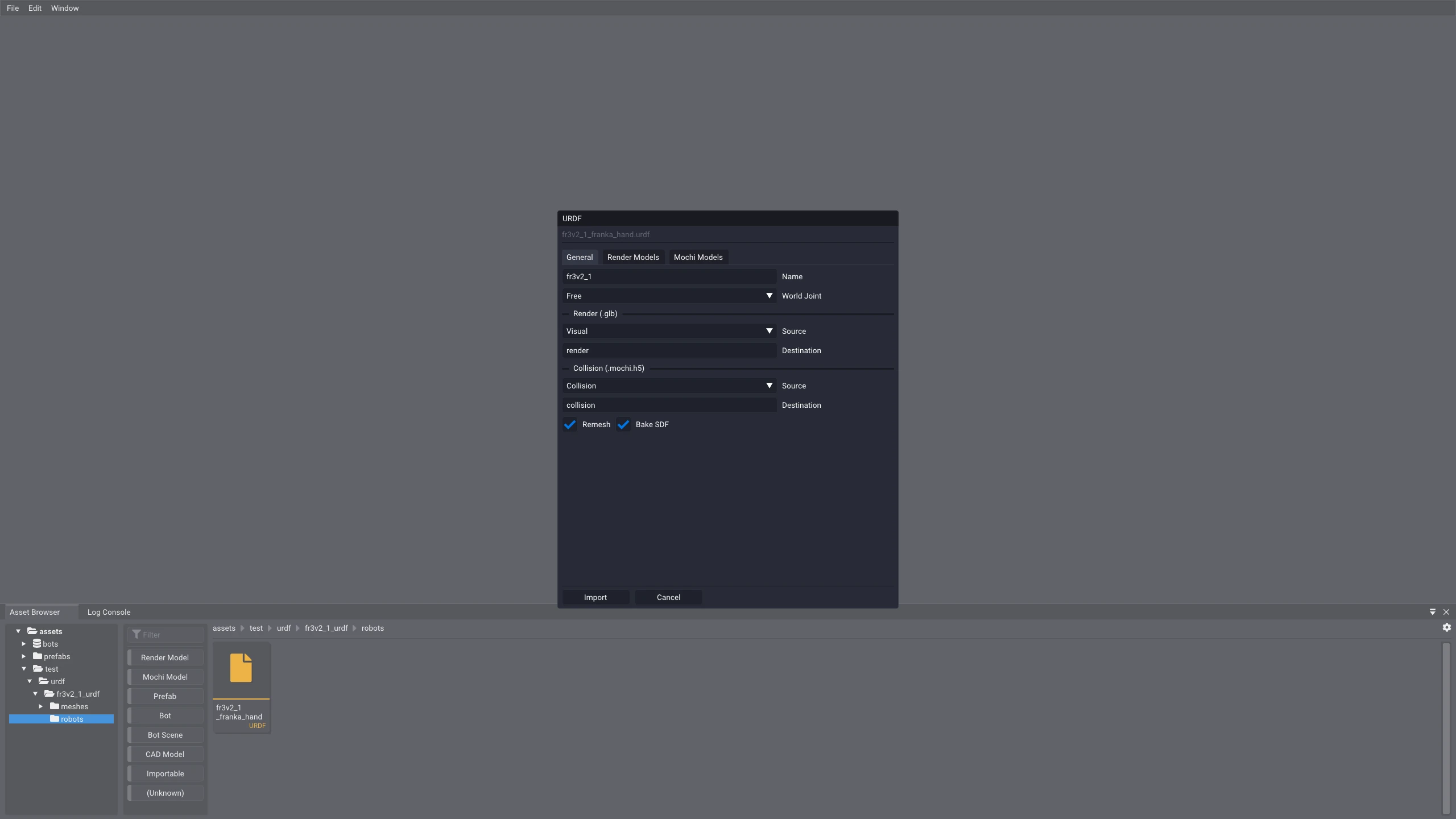
Import Options
General
The General tab is the one-stop shop. Everything a typical robot needs is here, applied in bulk across every link, and for most robots you can set these few fields and hit Import.
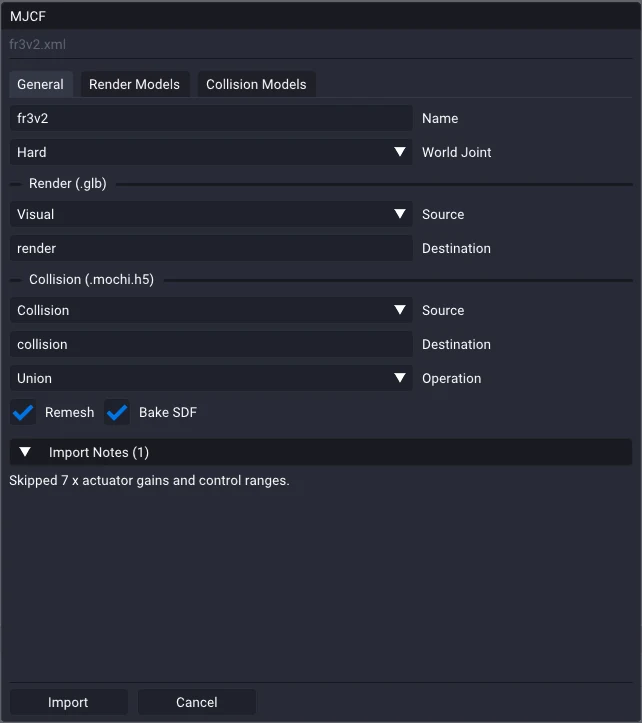
Name is the output bot name, producing <name>.superdex_bot. It defaults to
the robot name declared in the file, made unique against what is already in the
destination folder. You can override it freely; if you type a name that would
overwrite an existing bot, the field turns red and Import is blocked.
World Joint sets the joint that attaches the bot's root link to the world, and is limited to two choices:
| Choice | Meaning |
|---|---|
| Free | A 6-DoF joint. The bot has a floating base and is free to translate and rotate — use this for mobile bases, humanoids, and anything that should fall or be pushed around. |
| Hard | A 0-DoF weld. The root link is rigidly pinned in place — use this for a fixed-base manipulator bolted to a table. |
Import Notes lists anything in the file that Studio skipped, and any mesh it references that could not be found.
Render and Collision sources
A URDF link describes its geometry twice: <visual> geometry for display
(usually COLLADA .dae meshes) and <collision> geometry for physics (usually
.stl meshes). Studio keeps the same split, but in its own preferred formats —
.glb for render models and .mochi.h5 for collision models.
Each section has a Source picker choosing which geometry to pull from for every link, and a Destination subfolder for the generated files (blank writes into the bot's folder directly):
| Section | Source default | Destination default | Output |
|---|---|---|---|
| Render | Visual | render | .glb |
| Collision | Collision | collision | .mochi.h5 |
A link without visual geometry is rendered from its collision geometry, and a URDF link without collision geometry gets its collision model from its visuals.
Studio converts as needed: a link whose only mesh is already in the target format is copied through untouched, and anything else is converted. Coordinate spaces are handled for you — render and physics use different conventions, and the importer applies the right transform based on the source format.
Render models keep their colors. A COLLADA, GLB, or OBJ mesh with a material
library keeps its own materials; a mesh without any, such as an STL, takes the
color of its URDF <material>, as RViz does.
URDF collision meshes are very often convex stand-ins for the real part. Below is the same Robotiq gripper imported twice — once with Collision as the collision source, once with Visual:
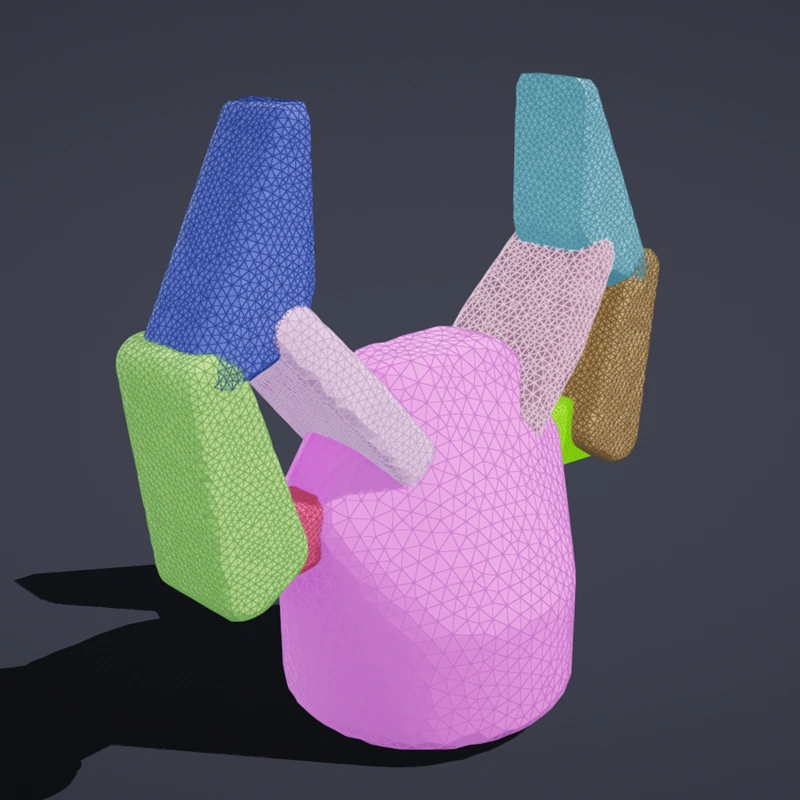
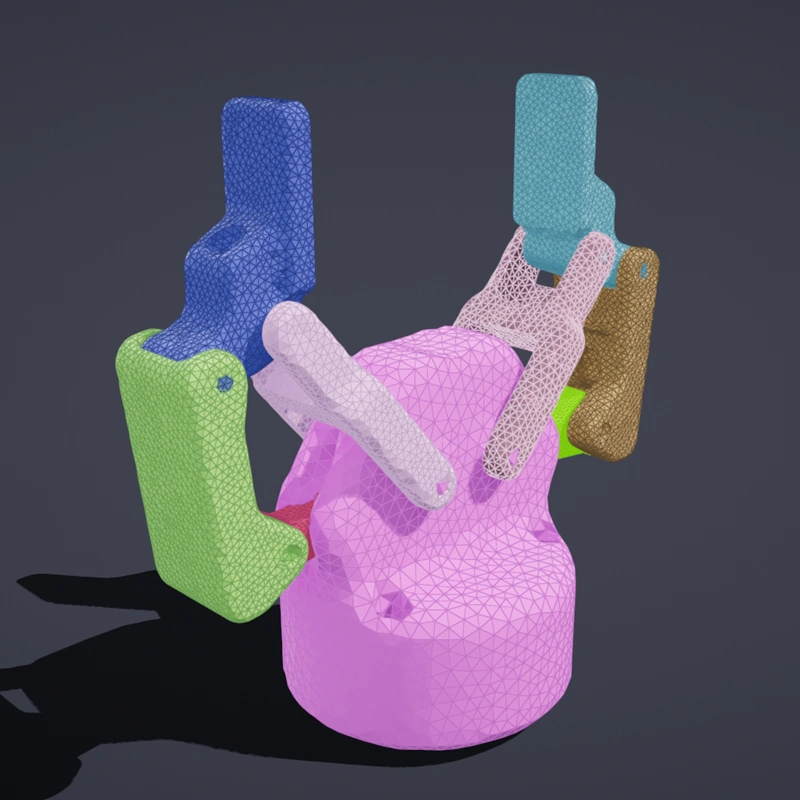
Notice what the convex hulls lose: the hooked fingertips fill in flat, the recesses in the palm disappear, and each finger becomes a smooth tapered block. A gripper like this closes on an object using exactly the features that the hulls erased.
This is normal practice, not sloppy authoring — most engines require convex collision geometry, so URDF authors ship hulls (or a convex decomposition) as a matter of course. SuperDex Physics has no such restriction: it simulates non-convex collision geometry directly. There is no reason to inherit that approximation, so for contact-rich parts set the collision Source to Visual and let Studio build accurate colliders from the detailed meshes.
A URDF references its meshes by <mesh filename="...">, and there is no single
convention for what goes in that string. Studio's importer tries the common
ones, in order, and takes the first file that actually exists on disk:
package://<pkg>/<path>— the ROS convention. Studio walks up from the.urdflooking for apackage.xmlto locate the package root, then resolves<path>beneath it.package://with nopackage.xml— common in datasets that strip it, or inxacro-generated exports. Studio walks up the directory tree from the.urdfand resolves against each ancestor, closest first, matching either an ancestor directory named<pkg>or the path sitting directly beneath one.package://with the package segment omitted — malformed but common (e.g.package://meshes/link.stl). The remainder is resolved as-is against each ancestor.- Absolute paths — used directly. Unlike the cases above, an absolute path that does not exist is reported as an error in the Log Console.
- Relative paths — resolved against the
.urdffile's own directory.
Whatever the URDF actually wrote is preserved either way, so a reference that cannot be resolved shows up in the wizard as a missing mesh with its original text, rather than silently reading as "no mesh here".
Links with several geometries
A link can carry several pieces of geometry: a URDF link may declare several
<visual> and <collision> elements, and MuJoCo bodies usually do. Pieces can be
meshes or primitives (URDF boxes, cylinders, and spheres; MuJoCo also has
capsules and ellipsoids), and Studio imports them all. Each link's render model
merges its visual pieces into one .glb.
A Mochi link holds one collision shape, so the collision Operation (on the General tab, or per link) decides how a link's collision pieces become one:
| Operation | Result |
|---|---|
| Union (default) | One watertight mesh, the exact boolean union of the pieces. It may be non-convex, which SuperDex Physics handles directly. |
| Shrink-Wrap | One mesh wrapped tightly around the pieces: a convex hull deflated toward them. Fast and robust, but it fills deep concavities. |
| Separate Links | Each extra piece on its own child link, welded to the link with a Hard joint. When the link has explicit inertia (a URDF <inertial>, or MJCF inertia), the pieces get a negligible mass; otherwise each weighs its own shape. This is also how bots loaded from URDF or MJCF at runtime are laid out. |
| Copy (URDF only) | Keep a link's only mesh file as it is, byte for byte. As a blanket choice, links that cannot be copied get Union. |
| Ignore | No collision model for the link. |
A link with a single collision piece is converted the same way by every merging operation. When there are several, the exact union needs closed meshes that do not intersect themselves, so each one is rebuilt and its holes are filled first. A mesh that still cannot be used, or a union that fails, is replaced by a tight wrap that keeps concavities wider than about 1% of the link's size, and the Log Console says so.
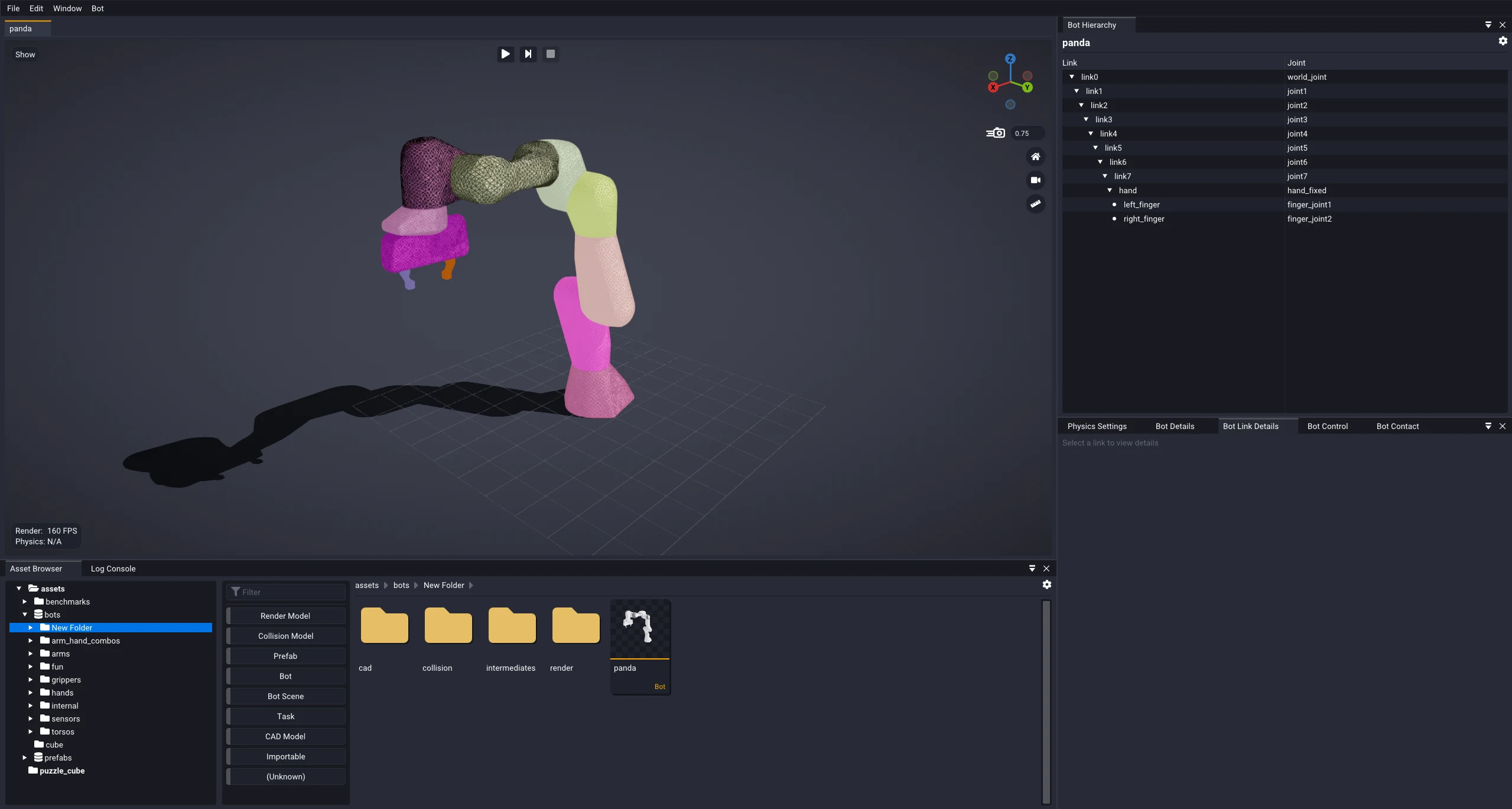
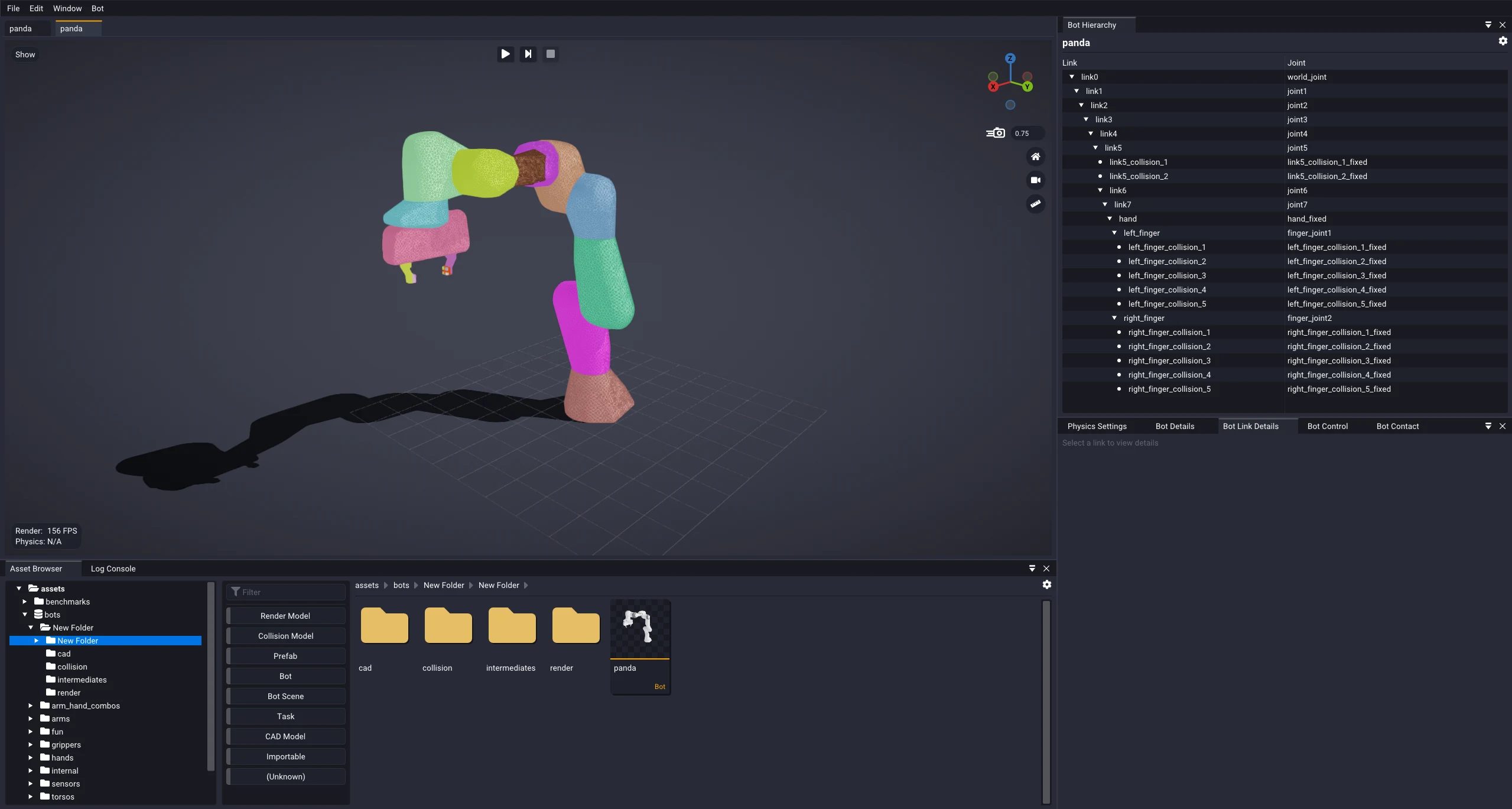
The exact union can take many minutes for a link whose collision pieces touch
exactly, such as pads lying flush on a finger (the Franka Panda's left_finger
and right_finger). If a Build link.mochi.h5 task stalls, cancel the
import, set the collision Operation to Custom, and choose
Shrink-Wrap for that link. Shrink-Wrap is fast, at the cost of filling the
link's deep concavities.
Remesh and Bake SDF
Two checkboxes refine the collision meshes as they are converted. Both use default parameters — you can fine-tune either one per model after import in the Model Editor.
| Option | What it does |
|---|---|
| Remesh | Rebuilds the surface into a clean, watertight collision mesh. Raw meshes are frequently open, self-intersecting, or needlessly dense, none of which simulate well. |
| Bake SDF | Computes a signed distance field and stores it alongside the collision mesh. SDF colliders give SuperDex Physics fast, stable, dense contact — this is what you want for contact-rich manipulation. |
Both only apply during conversion; copied collision models are left as they are.
Collision recipes
Studio builds each converted collision model with a processing recipe, the same
kind of modifier stack you build in the Model Editor. A
recipe reads the link's collision geometry: a single mesh with the source for its
file type (Source from CAD Model, Render Model, or Mochi Model, From
File), placed by an Apply SRT Transformation, and anything else with a
Source from Parts. It combines the geometry with a Merge (Union or Shrink
Wrap) when there are several geoms or the operation is Shrink-Wrap, remeshes it
(Alpha Wrap, then Incremental Isotropic Remesh) when Remesh is on,
and writes the .mochi.h5 with Export Mochi Model. A model whose recipe fails
(for example a missing mesh file, or a remesh that fails) is not built, and the
import reports it.
With Keep Recipes on (the default), each recipe stays in the bot's
intermediates folder as <model>.StudioProcessing.json, and the files it reads
are copied into a src folder beside the collision models (collision/src by
default). A collision model built from a single STL is the exception: the STL is
copied to cad/<model>.stl, so the Model Editor shows it as the model's CAD
Model, and the recipe reads it with Source from CAD Model (From Model Viewer),
placed by the CAD Model's transform. And when a link's collision model is built from
the same single geom as its render model (for example with the collision Source
set to Visual), the recipe reads the render model with Source from Render
Model (From Model Viewer), copying nothing. Open a collision model in the Model Editor and its recipe loads with it:
change a part, switch Union to Shrink Wrap, tune the remesh or the SDF, and press
Build/Export All to rebuild the model. A recipe also runs without the window:
superdex_studio --process <bot>/intermediates/<model>.StudioProcessing.json
With Keep Recipes off, the recipes run from a temporary folder and nothing is kept but the collision models. Render models are built directly, without recipes.
Per-link control
If the blanket choices are not enough — say one link's visual mesh is missing, or a single gripper finger needs different treatment — the Render Models and Collision Models tabs expose every link individually.
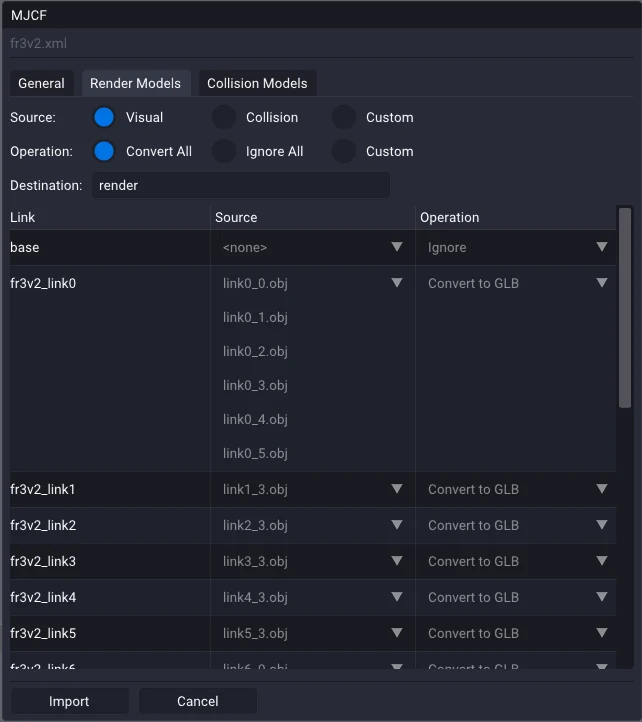
.glb output.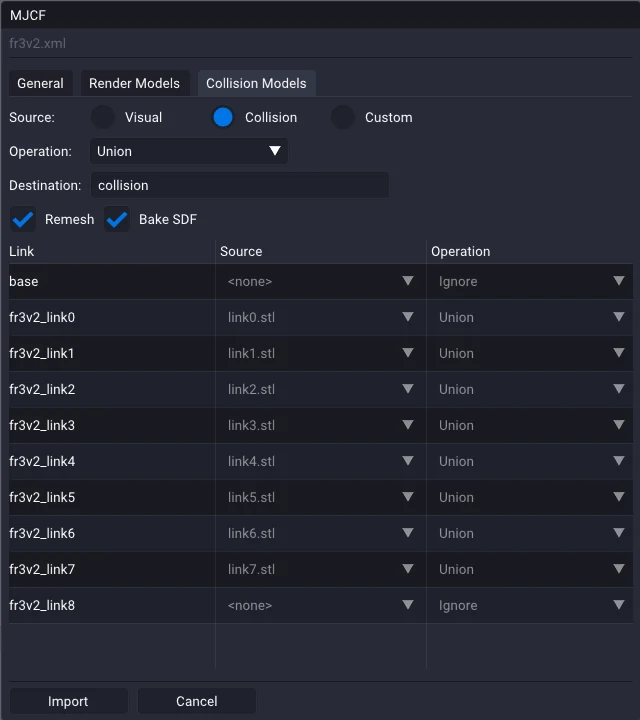
.mochi.h5 output.Each tab repeats the blanket Source and Operation choices at the top, and adds a table with one row per link. Selecting Custom on either unlocks the matching table column so you can configure links one at a time; the other choices overwrite every row, so switch to Custom before making per-link edits.
Per link, Source picks between that link's visual and collision geometry, and lists every piece the model is built from: a mesh file, or a primitive's type and name. Hover one to see its full path. A render model's Operation is one of:
| Operation | Result |
|---|---|
| Convert to GLB | Merge the link's pieces into one .glb. |
| Copy (URDF only) | Copy the link's only mesh file through byte-for-byte, no conversion. |
| Ignore | No render model for the link. |
A collision model's Operation is one of the collision operations. The URDF importer's Copy All choice copies every link it can and converts the rest.
A warning icon marks any link with a mesh that is referenced but missing on disk. Those links import without that mesh rather than failing the whole import.
MJCF (MuJoCo)
The MJCF importer opens the same wizard with the same tabs, and produces the
same kind of .superdex_bot. What differs comes from how MuJoCo describes a
robot.
Every body becomes a link. Joints, limits, damping (damping), joint
friction (frictionloss), rotor inertia (armature), and <inertial> mass
properties carry over. A body without an <inertial> takes its mass from its
geoms, as in MuJoCo. A body with several joints becomes a chain of massless
links, one per joint. The World Joint defaults to Free when the root body
has a <freejoint> and Hard otherwise. The home keyframe (or the first
one) becomes the bot's default pose, and <equality connect> constraints become
cycle joints.
Geoms follow MuJoCo. Colors come from the MJCF material or rgba, as in
MuJoCo, replacing a mesh's own materials, and 2D material textures are applied
when the mesh has texture coordinates. A body with no collision geoms does not
collide in MuJoCo, so it gets no collision model. There is no Copy: geoms are
always converted. Collision meshes are used as they are, concavities included,
even though MuJoCo itself collides each mesh as its convex hull.
Self-contact follows MuJoCo. MuJoCo's rules (parent and child bodies never
collide; contype/conaffinity bitmasks; <contact> exclude and pair)
are written into the bot as contact overrides wherever they differ from Studio's
defaults.
Tendons, sensors, cameras, lights, sites (other than as connect anchors),
weld and joint equality constraints, joint springs, contact solver settings
(solref, solimp), and actuator gains are skipped. Actuator force limits are
kept as joint effort limits. Everything skipped is listed under Import Notes on the General tab.
Import
Once the options are set, press Import and Studio begins processing the
meshes in the background, reporting progress as it goes. When it finishes, the
new .superdex_bot appears in the Asset Browser. Double-click it to open the
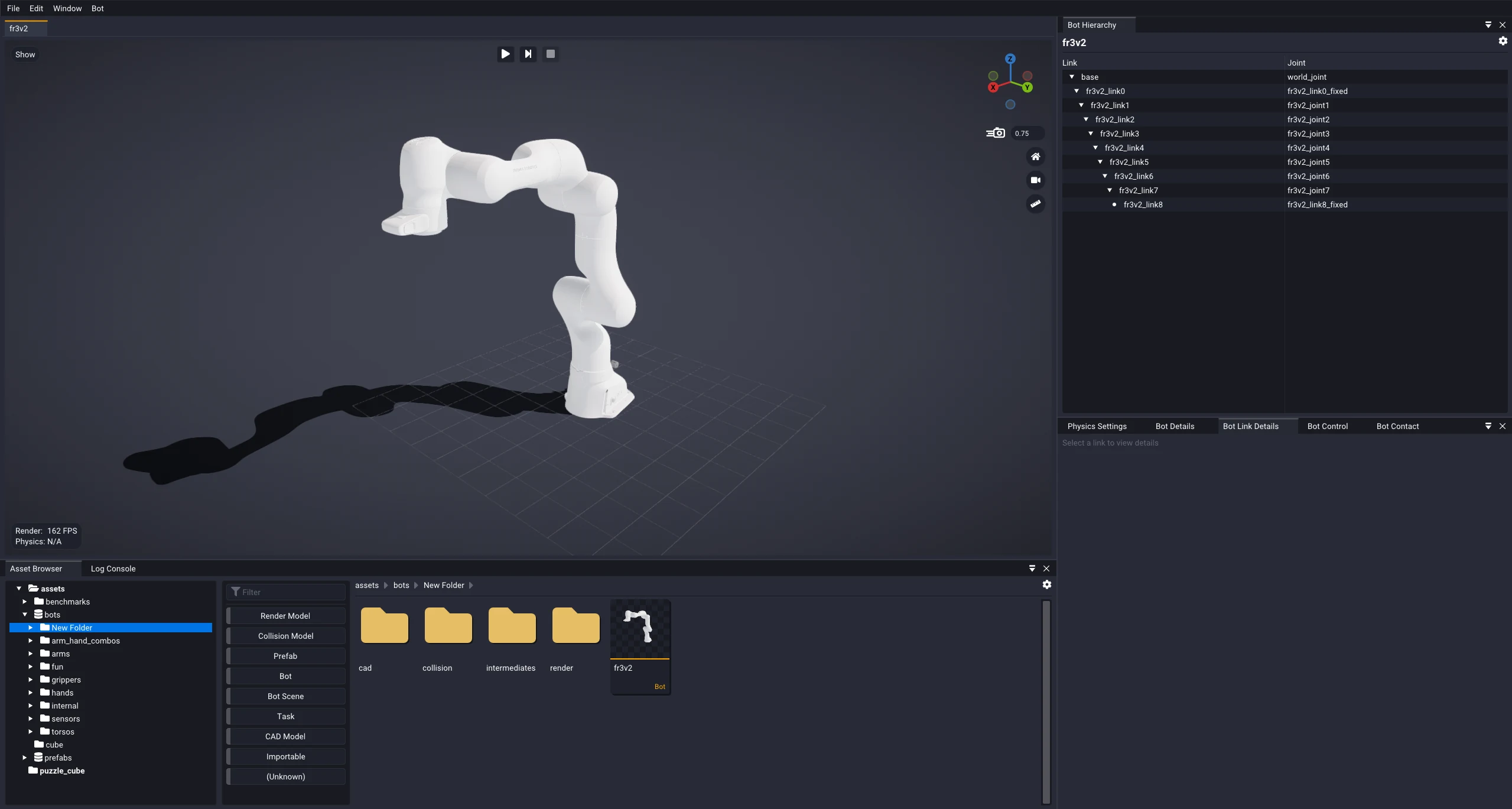
bot and inspect the imported render and collision geometry.
Where to go next
- Editing — open the imported bot, work through its hierarchy, links, joints, and contact.
- Model Editor — refine an imported mesh. Re-run the modifier stack, tune the remeshing, and rebake SDFs on any collision model the importer produced with defaults.
See also
- Bot Editor — the rest of the bot workflow.
- Model Editor Guide — the modifier stack that builds collision geometry.